Windows CMD 命令行美化指南

一、安装 Windows Terminal

Windows Terminal 是微软官方推出的现代化终端应用,支持多种命令行工具,包括 CMD、PowerShell 和 WSL 等。

安装步骤

  1. 打开「微软应用商店」
  2. 搜索「Windows Terminal」
  3. 点击「安装」按钮
  4. 安装完成后,打开 Terminal,默认会包含「命令提示符(CMD)」配置文件
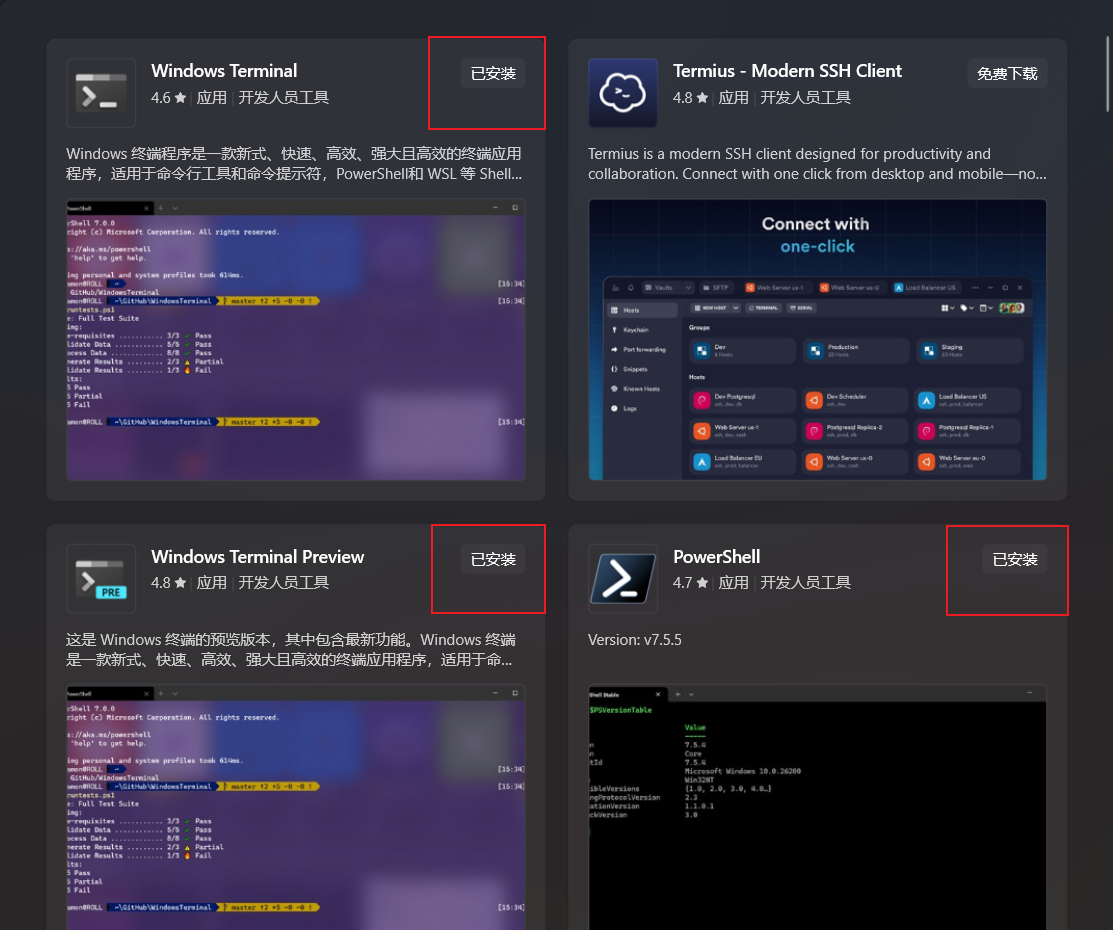
Windows Terminal 安装界面

二、图形界面设置 CMD 背景图

通过 Windows Terminal 的图形界面,你可以轻松为 CMD 设置背景图片,提升视觉体验。

设置步骤

  1. 打开 Windows Terminal
  2. 点击顶部下拉箭头 → 选择「设置」
  3. 在左侧「配置文件」中:
    • 选择「命令提示符」:仅对 CMD 生效
    • 选择「默认值」:全局生效
  4. 右侧滚动到「附加设置」→「外观」
  5. 找到「背景图像」选项:
    • 勾选「使用桌面壁纸」
    • 或点击「浏览」选择本地图片(推荐 PNG/JPG 格式,路径避免中文和空格)
  6. 调整「背景图像不透明度」为 0.2–0.4(保证文字清晰可读)
  7. 选择「背景图像填充模式」:
    • uniformToFill:保持比例填满(可能裁剪边缘)
    • uniform:保持比例完整显示(可能留有边框)
  8. 点击「保存」按钮,设置立即生效

三、美化加分项

1. 字体优化

选择合适的字体可以显著提升命令行的可读性,推荐安装支持图标和连字的 Nerd Fonts。

  • 推荐字体:Fira Code Nerd Font
  • 设置方法:在 Windows Terminal 配置中选择「外观」→「字体」→ 选择已安装的 Nerd Font

2. 亚克力透明效果

启用亚克力透明效果,让终端与桌面背景融合,营造现代感。

  • 在配置文件中添加以下设置:
    1
    2
    "useAcrylic": true,
    "acrylicOpacity": 0.8
  • 配合系统设置:「设置 → 个性化 → 颜色 → 透明效果」开启毛玻璃效果

3. 提示符美化

使用 oh-my-posh 为 CMD 配置炫酷的提示符,显示更多有用信息。

四、oh-my-posh 提示符美化

oh-my-posh 是一款强大的提示符美化工具,支持多种 shell,包括 CMD。

1. 安装 oh-my-posh

以管理员身份运行 PowerShell,执行以下命令:

1
winget install JanDeDobbeleer.OhMyPosh -s winget

安装完成后,重启 Terminal,输入以下命令验证安装:

1
oh-my-posh --version

2. 配置 CMD 使用 oh-my-posh

步骤 1:创建配置文件

1
notepad %USERPROFILE%\Documents\profile.cmd

在打开的记事本中粘贴以下内容:

1
2
@echo off
oh-my-posh init cmd --config "%POSH_THEMES_PATH%\jandedobbeleer.omp.json" | cmd

保存并关闭文件。

步骤 2:设置自动加载

创建启动脚本,让 CMD 每次启动时自动加载配置:

1
notepad %USERPROFILE%\AppData\Roaming\Microsoft\Windows\Start Menu\Programs\Startup\cmd-init.cmd

在打开的记事本中粘贴以下内容:

1
2
@echo off
if exist "%USERPROFILE%\Documents\profile.cmd" call "%USERPROFILE%\Documents\profile.cmd"

保存并关闭文件。

3. 安装 Nerd Font(解决乱码问题)

重要:必须使用 Nerd Font,否则会出现乱码(显示 ▯ 符号)。

  • 下载并安装 Nerd Font(如 FiraCode Nerd Font)
  • 在 Windows Terminal 中设置字体为 Nerd Font
  • 重启 Terminal 生效

4. 切换主题

oh-my-posh 提供了多种内置主题,你可以根据个人喜好选择。

临时切换主题

在 CMD 中直接运行以下命令:

1
2
3
4
5
6
7
8
# 使用 atomic 主题
oh-my-posh init cmd --config "%POSH_THEMES_PATH%\atomic.omp.json" | cmd

# 使用 catppuccin_macchiato 主题
oh-my-posh init cmd --config "%POSH_THEMES_PATH%\catppuccin_macchiato.omp.json" | cmd

# 使用 catppuccin_mocha 主题
oh-my-posh init cmd --config "%POSH_THEMES_PATH%\catppuccin_mocha.omp.json" | cmd

永久切换主题

修改 %USERPROFILE%\Documents\profile.cmd 文件,将 --config 参数替换为你想要的主题:

1
2
3
4
5
6
7
# 使用 catppuccin_macchiato 主题
@echo off
oh-my-posh init cmd --config "%POSH_THEMES_PATH%\catppuccin_macchiato.omp.json" | cmd

# 或使用 catppuccin_mocha 主题
@echo off
oh-my-posh init cmd --config "%POSH_THEMES_PATH%\catppuccin_mocha.omp.json" | cmd

保存文件后,重启 CMD 或 Windows Terminal 即可生效。

5. 主题预览

Catppuccin Macchiato 主题配置

1
2
3
4
5
6
7
8
9
10
11
12
13
14
15
16
17
18
19
20
21
22
23
24
25
26
27
28
29
30
31
32
33
34
35
36
37
38
39
40
41
42
43
44
45
46
47
48
49
50
51
52
53
54
55
56
57
58
59
60
61
62
63
64
65
66
67
68
69
70
71
72
73
74
75
76
77
78
79
80
81
82
83
84
85
86
87
88
89
90
91
92
93
94
95
96
97
98
99
100
101
102
103
104
{
"$schema": "https://raw.githubusercontent.com/JanDeDobbeleer/oh-my-posh/main/themes/schema.json",
"palette": {
"mantle": "#181825",
"base": "#1e1e2e",
"text": "#cdd6f4",
"subtext1": "#bac2de",
"subtext0": "#a6adc8",
"overlay2": "#9399b2",
"overlay1": "#7f849c",
"overlay0": "#6c7086",
"surface2": "#585b70",
"surface1": "#45475a",
"surface0": "#313244",
"lavender": "#b4befe",
"blue": "#89b4fa",
"sapphire": "#74c7ec",
"sky": "#89dceb",
"teal": "#94e2d5",
"yellow": "#f9e2af",
"peach": "#fab387",
"maroon": "#eba0ac",
"red": "#f38ba8",
"pink": "#f5c2e7",
"flamingo": "#f2cdcd",
"rosewater": "#f5e0dc",
"green": "#a6e3a1"
},
"blocks": [
{
"alignment": "left",
"segments": [
{
"background": "p:blue",
"foreground": "p:base",
"powerline_symbol": "\ue0b4",
"leading_diamond": "\ue0b6",
"style": "diamond",
"template": " {{ .UserName }} ",
"type": "session"
},
{
"background": "p:surface0",
"foreground": "p:blue",
"powerline_symbol": "\ue0b4",
"style": "powerline",
"template": " {{ .HostName }} ",
"type": "host"
},
{
"background": "p:surface1",
"foreground": "p:green",
"powerline_symbol": "\ue0b4",
"style": "powerline",
"template": " {{ .Path }} ",
"type": "path"
},
{
"background": "p:surface2",
"foreground": "p:yellow",
"powerline_symbol": "\ue0b4",
"style": "powerline",
"template": " {{ .HEAD }} ",
"type": "git"
},
{
"background": "p:overlay0",
"foreground": "p:teal",
"powerline_symbol": "\ue0b4",
"style": "powerline",
"template": " {{ if .Error }}{{ .Error }}{{ else }}{{ .Full }}{{ end }} ",
"type": "status"
},
{
"background": "p:overlay1",
"foreground": "p:lavender",
"powerline_symbol": "\ue0b4",
"style": "powerline",
"template": " {{ .CurrentDate | date .Format }} ",
"type": "time"
},
{
"background": "p:overlay2",
"foreground": "p:peach",
"powerline_symbol": "\ue0b4",
"style": "powerline",
"template": " {{ .Name }} ",
"type": "shell"
},
{
"background": "p:subtext0",
"foreground": "p:base",
"trailing_diamond": "\ue0b4",
"style": "diamond",
"template": " ",
"type": "text"
}
],
"type": "prompt"
}
],
"final_space": true,
"version": 2
}

Catppuccin Mocha 主题配置

1
2
3
4
5
6
7
8
9
10
11
12
13
14
15
16
17
18
19
20
21
22
23
24
25
26
27
28
29
30
31
32
33
34
35
36
37
38
39
40
41
42
43
44
45
46
47
48
49
50
51
52
53
54
55
56
57
58
59
60
61
62
63
64
65
66
67
68
69
70
71
72
73
74
75
76
77
78
79
80
81
82
83
84
85
86
87
88
89
90
91
92
93
94
95
96
97
98
99
100
101
102
103
104
{
"$schema": "https://raw.githubusercontent.com/JanDeDobbeleer/oh-my-posh/main/themes/schema.json",
"palette": {
"mantle": "#24273a",
"base": "#1e2030",
"text": "#cad3f5",
"subtext1": "#b8c0e0",
"subtext0": "#a5adcb",
"overlay2": "#939ab7",
"overlay1": "#8087a2",
"overlay0": "#6e738d",
"surface2": "#5b6078",
"surface1": "#494d64",
"surface0": "#363a4f",
"lavender": "#b7bdf8",
"blue": "#8aadf4",
"sapphire": "#7dc4e4",
"sky": "#91d7e3",
"teal": "#8bd5ca",
"yellow": "#eed49f",
"peach": "#f5a97f",
"maroon": "#ee99a0",
"red": "#ed8796",
"pink": "#f5bde6",
"flamingo": "#f0c6c6",
"rosewater": "#f4dbd6",
"green": "#a6da95"
},
"blocks": [
{
"alignment": "left",
"segments": [
{
"background": "p:blue",
"foreground": "p:base",
"powerline_symbol": "\ue0b4",
"leading_diamond": "\ue0b6",
"style": "diamond",
"template": " {{ .UserName }} ",
"type": "session"
},
{
"background": "p:surface0",
"foreground": "p:blue",
"powerline_symbol": "\ue0b4",
"style": "powerline",
"template": " {{ .HostName }} ",
"type": "host"
},
{
"background": "p:surface1",
"foreground": "p:green",
"powerline_symbol": "\ue0b4",
"style": "powerline",
"template": " {{ .Path }} ",
"type": "path"
},
{
"background": "p:surface2",
"foreground": "p:yellow",
"powerline_symbol": "\ue0b4",
"style": "powerline",
"template": " {{ .HEAD }} ",
"type": "git"
},
{
"background": "p:overlay0",
"foreground": "p:teal",
"powerline_symbol": "\ue0b4",
"style": "powerline",
"template": " {{ if .Error }}{{ .Error }}{{ else }}{{ .Full }}{{ end }} ",
"type": "status"
},
{
"background": "p:overlay1",
"foreground": "p:lavender",
"powerline_symbol": "\ue0b4",
"style": "powerline",
"template": " {{ .CurrentDate | date .Format }} ",
"type": "time"
},
{
"background": "p:overlay2",
"foreground": "p:peach",
"powerline_symbol": "\ue0b4",
"style": "powerline",
"template": " {{ .Name }} ",
"type": "shell"
},
{
"background": "p:subtext0",
"foreground": "p:base",
"trailing_diamond": "\ue0b4",
"style": "diamond",
"template": " ",
"type": "text"
}
],
"type": "prompt"
}
],
"final_space": true,
"version": 2
}

五、常见问题及解决方案

1. 乱码问题

症状:提示符显示 ▯ 符号
原因:未使用 Nerd Font
解决方案:安装 Nerd Font 并在 Windows Terminal 中设置为默认字体

2. oh-my-posh 不生效

症状:CMD 启动后提示符没有变化
原因:配置文件路径错误或启动脚本未正确加载
解决方案

  • 检查 profile.cmd 文件是否存在于正确位置
  • 验证 cmd-init.cmd 文件是否在启动文件夹中
  • 重启 Windows Terminal 或计算机

3. 背景图片不显示

症状:设置背景图片后不显示
原因:图片路径包含中文或空格,或权限问题
解决方案

  • 使用不含中文和空格的图片路径
  • 确保图片文件存在且可访问
  • 调整背景图像不透明度

六、总结

通过以上步骤,你可以将单调的 CMD 命令行转变为美观、实用的现代终端界面。主要优化点包括:

  1. 安装 Windows Terminal:获得现代化的终端体验
  2. 设置背景图片:提升视觉效果
  3. 优化字体:使用 Nerd Font 支持图标和连字
  4. 启用亚克力透明:营造现代感
  5. 配置 oh-my-posh:获得功能丰富的提示符
  6. 选择合适主题:根据个人喜好定制外观